Keyboard shortcuts you should be using

Fun fact:
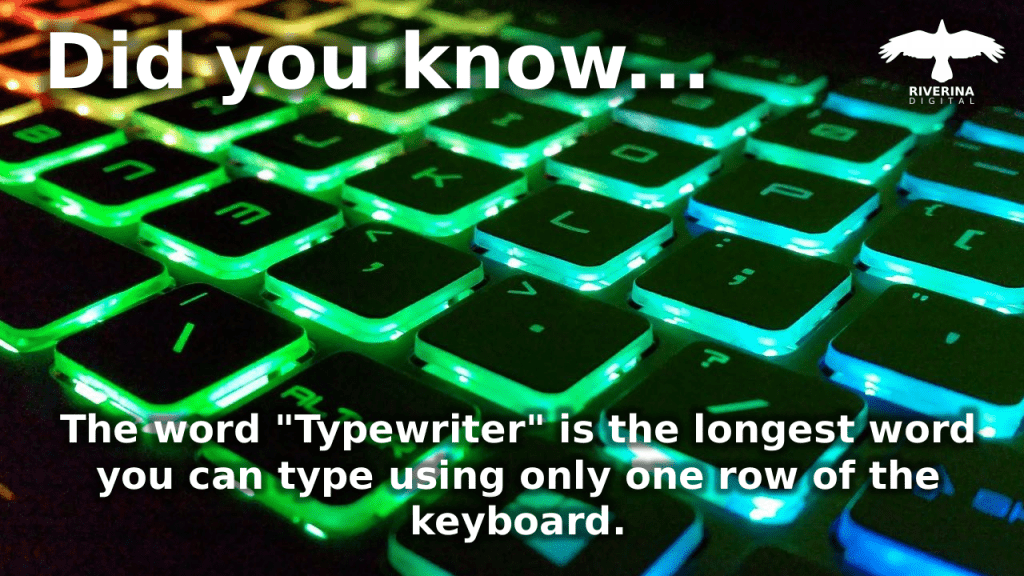
Did you know that the word “Typewriter” is the longest word you can type using only one row of the keyboard? We made a fact-o-graph about it.
Keyboard shortcuts will speed up everything
Basic Windows keyboard shortcuts
Ctrl + X, Ctrl + C and Ctrl + V: Cut, Copy and Paste
Use these keys to cut, copy and paste any highlighted text, images or other content.
Ctrl+Z: Undo

No matter what program you’re running, Ctrl+Z will roll back your last action. Whether you’ve just overwritten an entire paragraph in Microsoft Word or deleted a file you didn’t mean to, this one is an absolute lifesaver.
Ctrl+W: Close
Another shortcut that works almost everywhere, Ctrl+W will close whatever you’re viewing. Shut that File Explorer window, browser tab, or open image file without bothering to hone in on the close button.
Ctrl+A: Select all
This command allows you to highlight all the text during a document or select all the files during a folder. Hitting Ctrl+A can prevent time you’d otherwise spend clicking and dragging your mouse.
Alt+Tab: Switch apps
This baby is one among the classic Windows shortcuts, and it are often hugely useful when you’re running multiple applications. Just press Alt+Tab and you’ll be ready to quickly flick through all of your open windows.
Alt+F4: Close apps
Another old-school shortcut, Alt+F4 shuts down active apps so you’ll skip the method of hunting down their on-screen menus. Don’t worry about losing unsaved work with this command—it will prompt you to save lots of your documents before closing them.
Ctrl + Shift + S: Snipping tool

This combination opens the snipping tool so you can drag and select anything on your screen to take a screen shot of that area only.
The selection is automatically saved to your clipboard so use Ctrl + V to paste it inside a document or other location of your choosing.
Windows navigation shortcuts
Win+D: Show or hide the desktop
This keyboard combo minimizes all of your open windows, bringing your home screen into view. If you store rows and rows of files and shortcuts on your desktop, Win+D will allow you to access them in in moments.
Win+left arrow or Win+right arrow: Snap windows
Snapping a window simply opens it on one side of the screen (left or right, relying on which arrow you hit). this enables you to match two windows side-by-side and keeps your workspace organized.
Win+Tab: Open the Task view
Like Alt+Tab, this shortcut allows you to switch apps, but it does so by opening an updated Windows application switcher. the newest version shows thumbnails of all of your open programs on the screen.
Tab and Shift+Tab: Move backward and forward through options
When you open a panel , these commands move you forward (Tab) or backward (Shift+Tab) through the available options, saving you a click. If you’re handling a panel that has multiple tabs, hit Ctrl+Tab or Ctrl+Shift+Tab to navigate through them.
Ctrl+Esc: Open the beginning menu
If you’re employing a keyboard that doesn’t have a Windows key, this shortcut will open the beginning menu. Otherwise, a fast tap of the Windows key will do an equivalent thing. From there, you’ll stay the keyboard and navigate the beginning menu with the cursor keys, Tab, and Shift+Tab.
Advanced Windows shortcut tricks
F2: Rename
Simply highlight a file and hit F2 to offer it a replacement name. This command also allows you to edit text in other programs—tap F2 in Microsoft Excel, for instance , and you’ll be ready to edit the contents of the cell you’re in.
F5: Refresh
While you’re exploring the function key row, take a glance at F5. This key will refresh a page—a good trick when you’re using File Explorer or your browser . After the refresh, you’ll see the newest version of the page you’re viewing.
Win+I: Open Settings
Any time you would like to configure the way Windows works, hit this keyboard shortcut to mention the Settings dialog. Alternatively, use Win+A to open up the Action Center panel, which shows notifications and provides quick access to certain settings.
Win+L: Lock your computer
Keep your computer safe from any prying eyes by using this keyboard combo right before you step away. Win+L locks the machine and returns you to the login screen, so any snoops will need your user account password to regain access.
Win+S: Search Windows
The Windows taskbar features a handy search box that allows you to quiz Cortana or sift through your applications and saved files. Jump straight thereto with this keyboard shortcut, then type in your search terms.
Ctrl+Shift+Esc: Open the Task Manager
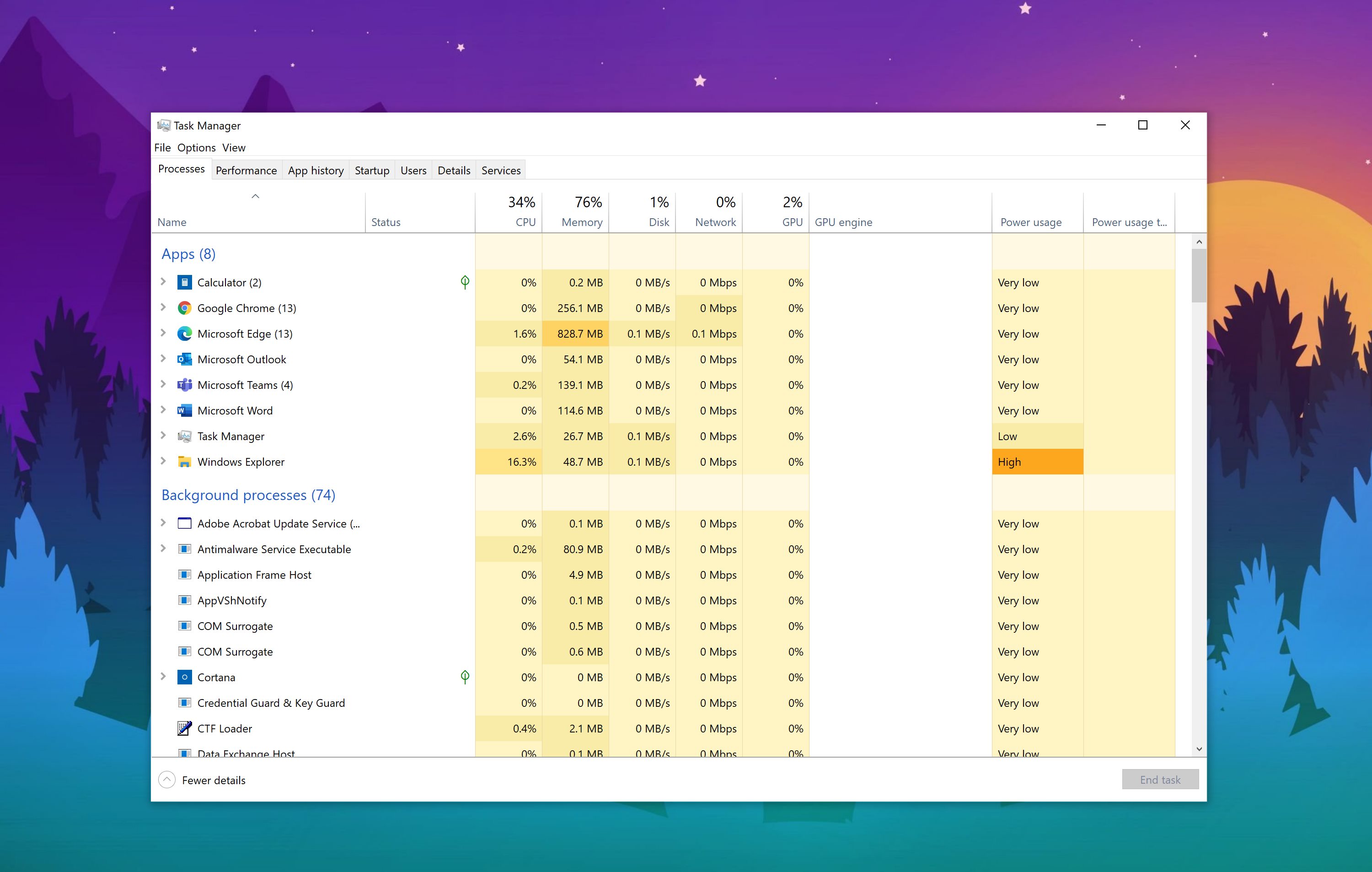
The Task Manager is your window into everything running on your Windows system, from the open programs to the background processes. This shortcut will call up the Task Manager, regardless of what application you’re using.
Win+PrtScn: Save a screenshot
No got to open a fanatical screenshot tool: Win+PrtScn grabs the entire screen and saves it as a PNG enter a Screenshots folder inside your Pictures folder. At an equivalent time, Windows also will copy the image to the clipboard. If you don’t want to snap the entire screen, the Alt+PrtScn combination will take a screenshot of just the active window, but it’ll only copy this image to the clipboard, so you won’t get a saved file.
Win+X: Open the hidden menu
Windows features a hidden Start menu, called the fast Link menu, that permits you to access all the key areas of the system. From here, you’ll jump straight to Device Manager to review and configure any hardware, like printers or keyboards, that are currently attached to the system. otherwise you can quickly mention the PowerShell prompt window to access advanced Windows commands.
Recent Comments